
WordPress 7.2 beta is now available for testing. We have been testing it on a demo coffee shop blog since Beta 1, and this one is shaping up to be a practical update for everyday site owners.
The WordPress core team plans to release the final version on December 8, 2026, which makes it the last major WordPress release of the year.
There’s a lot to cover, from Notes that sit in the margin of your post to form styling without code and a faster admin area.
Read on to see what’s coming in WordPress 7.2 and what it means for your website.
TL;DR: What’s coming in WordPress 7.2
Notes move into the margin of the editor, with emoji reactions, a toolbar button, and a compact mode for smaller screens.
Ipsum, a minimal blog theme with 8 color styles, becomes the new default theme and ends the “Twenty-” naming tradition.
New design tools let you style form fields, text shadows, text gradients, and duotone filters without custom CSS.
The admin area should load faster, and a new /random/ link sends visitors to a random post on your site.
Note: This beta release is for testing and development only. So, please do not install, run, or test this version of WordPress on your live website.
Instead, we recommend using a staging site or a local site. You can test WordPress 7.2 Beta by installing and activating the WordPress Beta Tester plugin.
Notes Move Into the Margin
Notes have improved with every release since they arrived in WordPress 6.9. WordPress 7.1 added @mentions and notes on selected text.
In 7.2, the focus is on making Notes easier to see and use while you write. The biggest change is where Notes live.
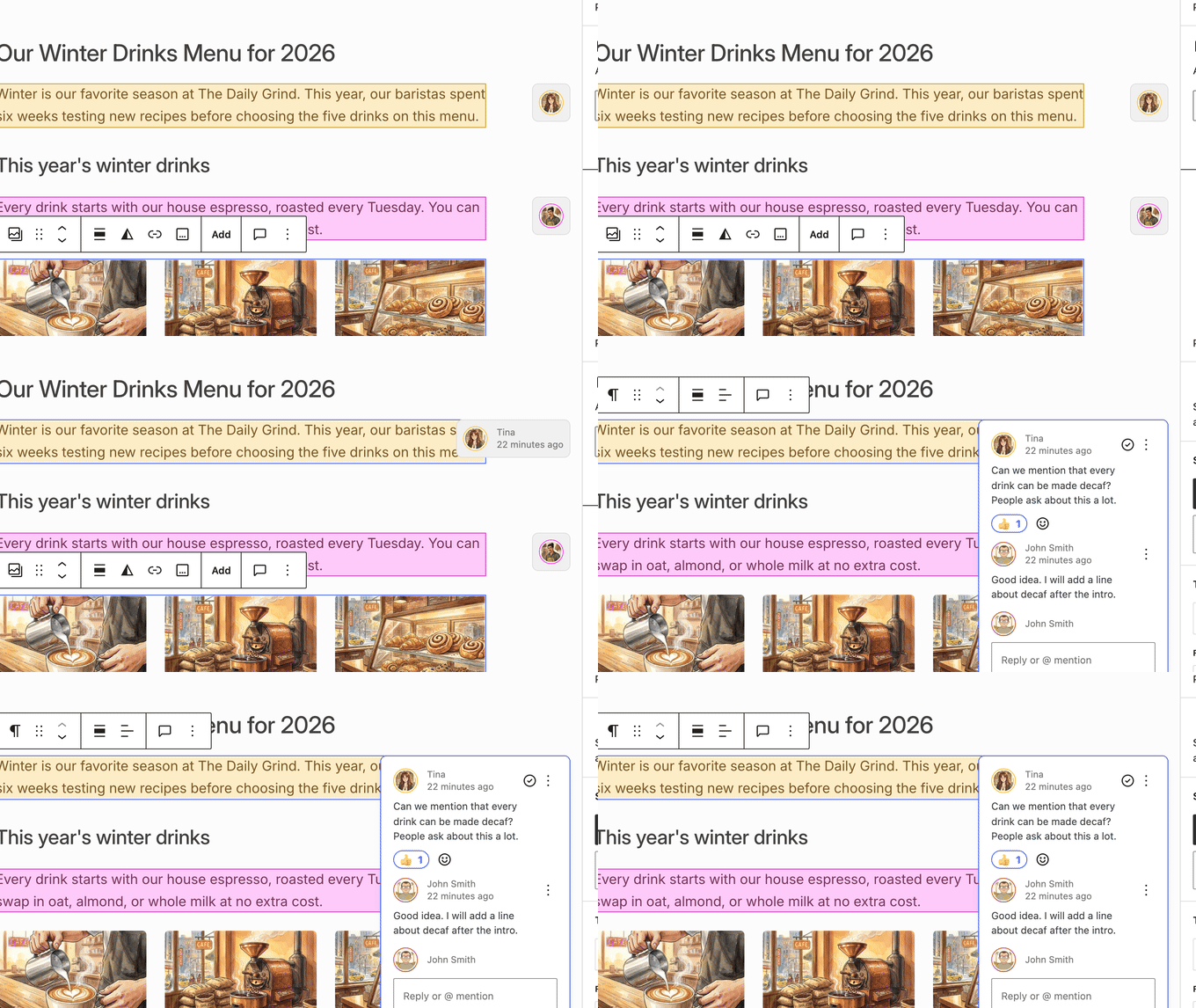
Instead of sitting inside a sidebar, notes now float in the margin of the editor canvas, right next to the block they belong to. This works much like comments in Google Docs.
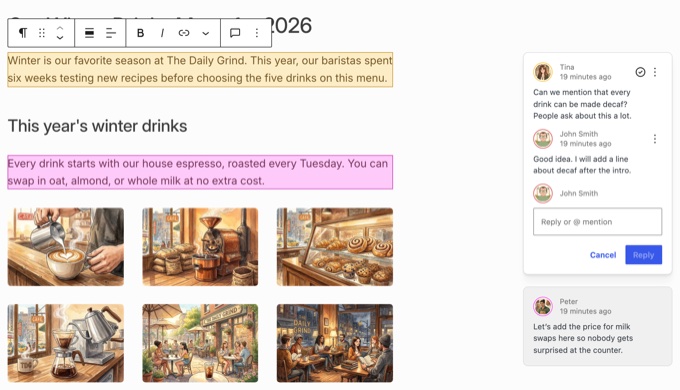
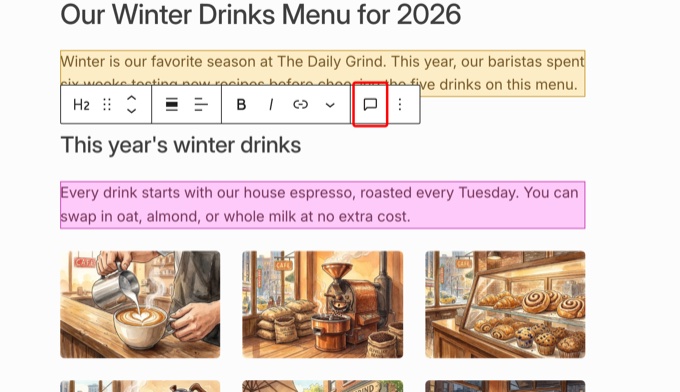
In our testing, we left notes on a draft as two different team members. WordPress highlighted each commented block in its author’s color, which made it easy to see who asked for what at a glance.
Now that Notes no longer take up the sidebar, you can keep them open at the same time as the block settings panel. Previously, opening one closed the other, which was annoying when you wanted to fix a block while reading the feedback about it.
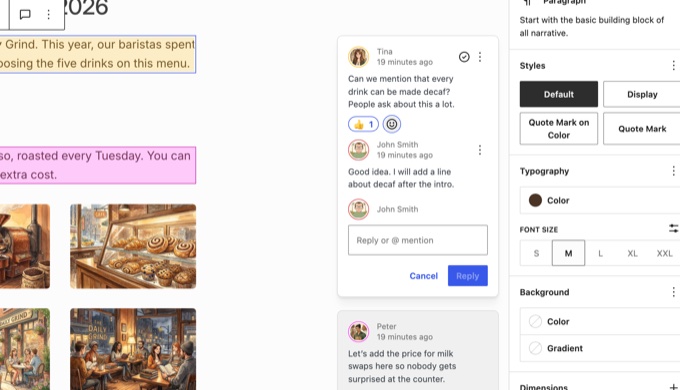
Other Notes improvements include:
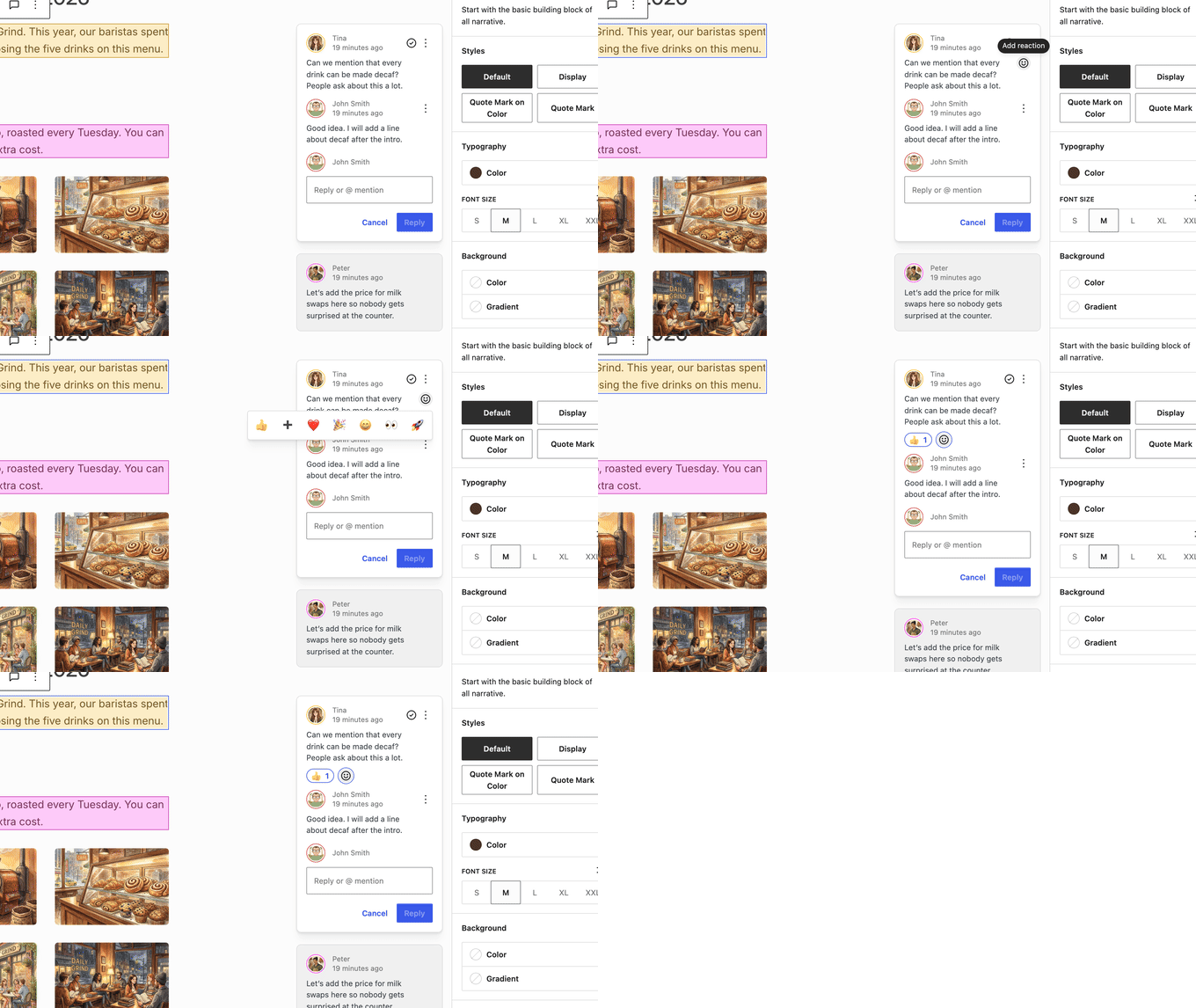
Emoji reactions. You can react to a note with one of seven emoji, including 👍, ❤️, 🎉, and 🚀, instead of typing a reply. This is useful for a quick “done” or “agreed” response.
An ‘Add Note’ button in the block toolbar. You can now leave a note on a block with a single click on the speech bubble icon.
A compact mode for smaller screens. When the editor gets crowded, for example with the block inserter open, notes shrink into small avatar bubbles. You can click a bubble to open the full note.
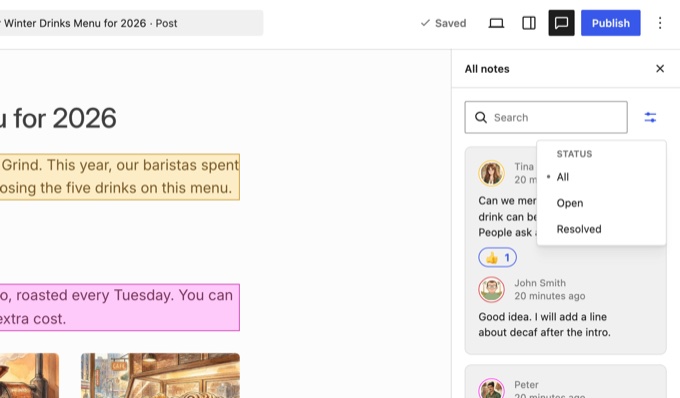
Better filtering. The All Notes panel has a new filter that lets you show all, open, or resolved notes.
For teams, agencies, and multi-author blogs, these small changes add up. Reviewing a draft inside WordPress is starting to feel like a natural part of your editorial workflow instead of a workaround.
Meet Ipsum, the New Default Theme
WordPress 7.2 will ship with a new default theme called Ipsum.
Ipsum is an intentionally minimal block theme for bloggers. It takes its name from “lorem ipsum,” the placeholder text designers use until real content arrives.
The theme follows the same idea. It gives you a clean starting point that you can turn into your own design.
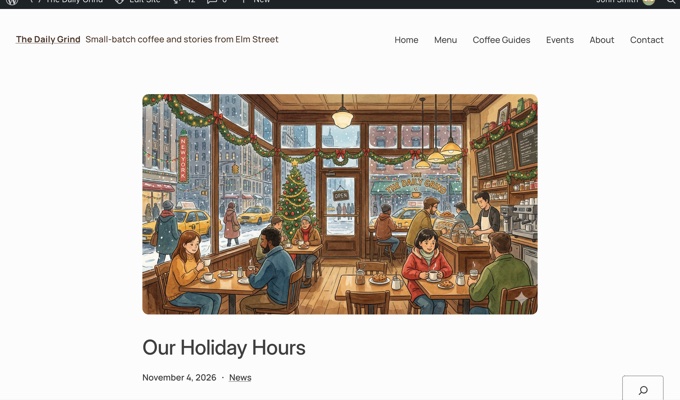
Ipsum includes several style variations that change the colors and typography of the whole site, including images. It also comes with patterns for headers, post lists, footers, and callouts.
Ipsum also breaks a 16-year tradition. Since Twenty Ten, WordPress has named every default theme after its year, like Twenty Twenty-Five, and future default themes will get their own names instead.
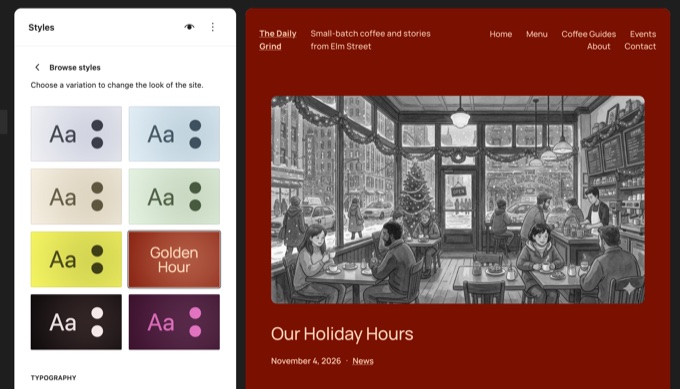
In our testing, Ipsum came with 8 color variations and 6 typography sets. You can find them in Appearance » Editor » Styles » Browse styles.
One click on a variation like ‘Golden Hour’ restyles the whole site, including the images.
Ipsum also works well with agentic AI tools like WPVibe, which connects your site to the AI assistant you already use, like Claude or ChatGPT. You can then ask your assistant in plain English to edit the theme and build custom designs on top of it.
We connected our demo site to WPVibe and asked Claude to give Ipsum a warm espresso color scheme and add an announcement bar to the header.

WPVibe made the changes in a draft copy of the theme, and we checked them in a private preview before anything went live.
However, if you need a feature-rich design, then you may still prefer one of the best full site editing themes.
Responsive Styling Reaches More Blocks
Responsive styling was one of the biggest additions in WordPress 7.1. It lets you change how a block looks on tablets and phones without writing CSS.
WordPress 7.2 expands this feature to more blocks and settings. The most useful example is the Gallery block.
You can now set different column counts, cropping, and aspect ratios for each screen size. For instance, you could show 4 columns on desktop, 2 on tablet, and 1 on mobile.
To try it, click the device preview icon in the top toolbar and choose Tablet or Mobile first. Then, turn on the ‘Responsive styles’ option in the same menu.
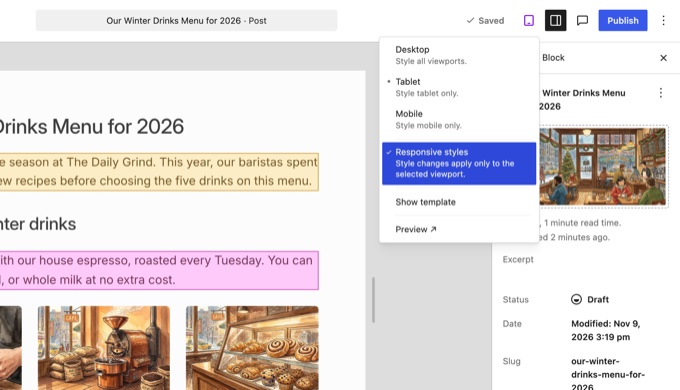
We noticed that the order matters here. When we turned on ‘Responsive styles’ while still in the Desktop view, our changes applied to every screen size instead.
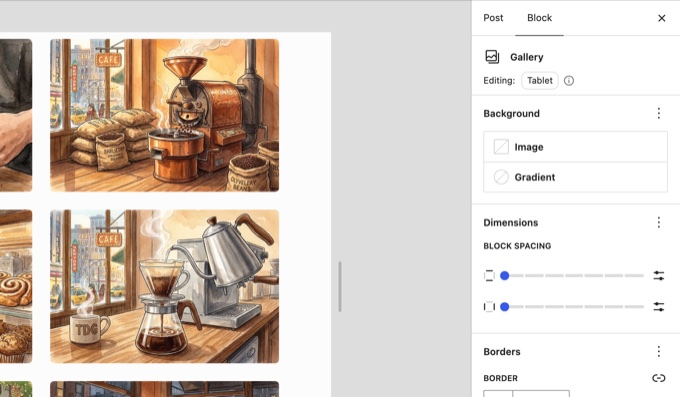
Once responsive mode is on, the block settings show an ‘Editing: Tablet’ badge. The panel also hides any setting that can’t change per screen size.
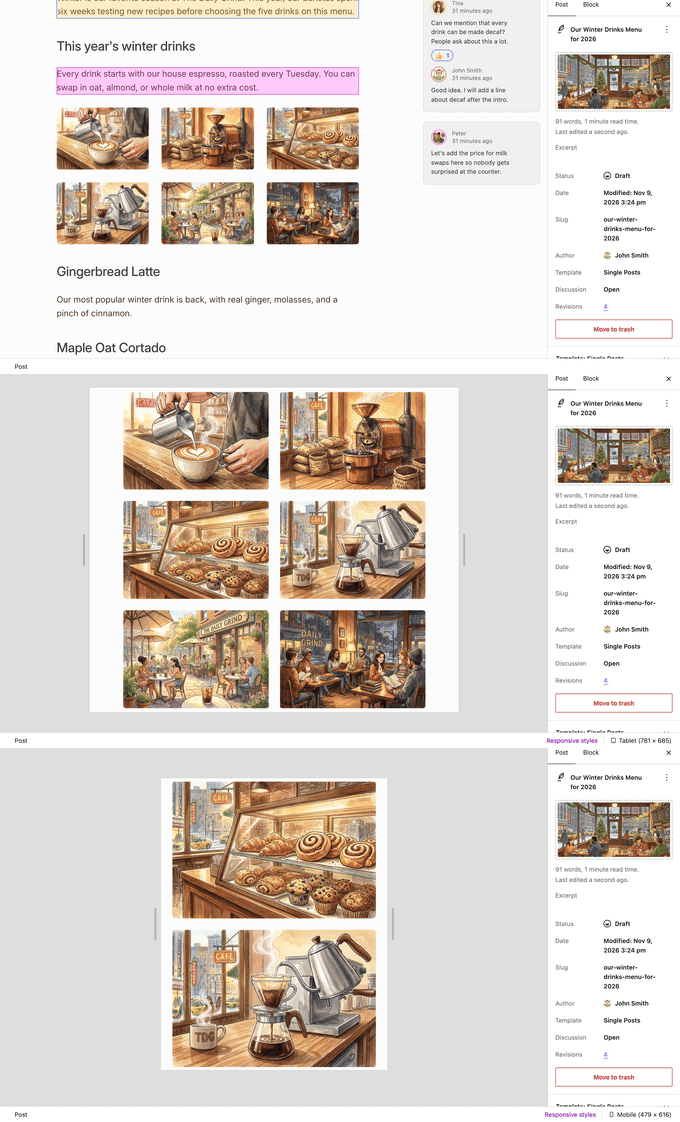
In our testing, we set our gallery to 3 columns on desktop, 2 on tablet, and 1 on mobile. We then checked the live page at different browser widths, and the gallery switched layouts exactly as planned.
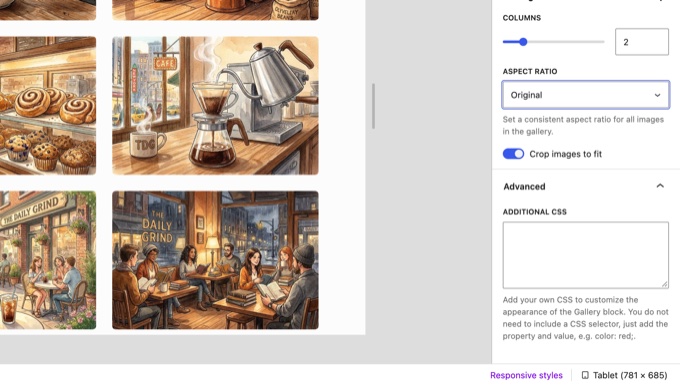
You will also find an ‘Additional CSS’ box under Advanced that only applies to the screen size you are editing.
WordPress 7.2 also adds a public API that lets third-party blocks with their own custom controls support responsive styling. In plain terms, you should start seeing responsive options in blocks from your favorite plugins, not just in core blocks.
Until now, fixing a gallery that looked great on desktop but cramped on phones usually meant writing custom CSS. With 7.2, beginners have one more reason they don’t need to touch code.
Style Your Forms Without Writing CSS
WordPress 7.2 lets you style common form elements directly from Global Styles.
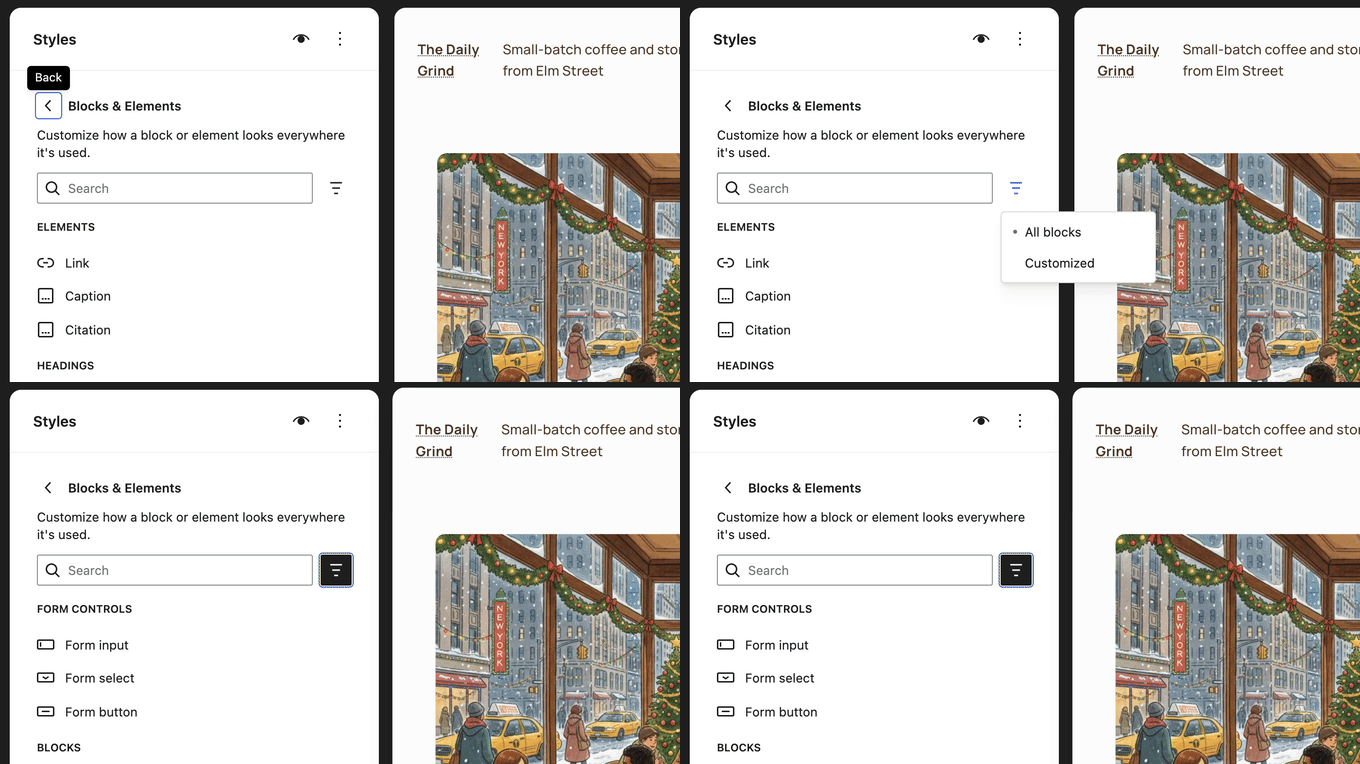
You can find the new options in Appearance » Editor » Styles » Blocks & Elements, under a new ‘Form controls’ section. In our Beta 4 install, it listed Form input, Form select, and Form button.
Each one has typography, color, background, spacing, border, and shadow settings. You set them once, and WordPress applies the styles to matching form fields across your website.
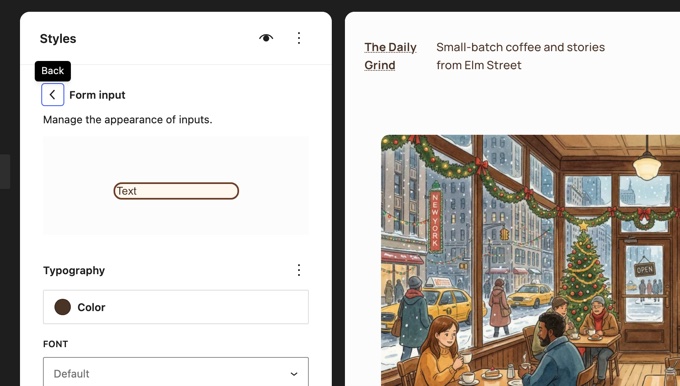
We tested this with a Search block and two dropdown menus. After we gave the form fields rounded brown borders and a cream background, both dropdown menus and the Search button picked up the new style.
The search box itself kept its old look. Our theme, Ipsum, has its own style for the Search block, and block styles from your theme override the new form styles.
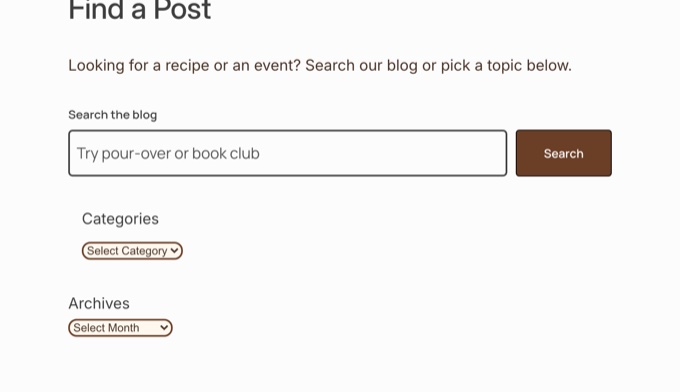
Forms often look out of place on an otherwise polished site. Input fields that don’t match your theme are a classic “small thing that needs CSS” problem, and this feature fixes it.
Keep in mind that this styles the standard WordPress form elements. The roadmap also mentions label styling, but we did not see a separate option for it in Beta 4.
Form plugins usually load their own styles, and those styles win over the new settings. In our testing, a WPForms contact form kept its white fields and blue Submit button after we changed the form styles in Global Styles.
To match a WPForms form to your theme, select the WPForms block in the editor and use its style settings for fields, labels, and buttons. For details, see our guide on how to customize and style your WordPress forms.
See Where Your Block Styles Come From
Two small changes in WordPress 7.2 solve a confusing problem in the block editor.
Previously, if you set a color or font size for a block in Global Styles, the block’s own settings panel stayed empty. You could not tell which styles were active or where they came from.
In WordPress 7.2, block settings now show the values a block inherits from Global Styles. For example, if all paragraphs on your site are red, then the Paragraph block settings will show red.
If you override that color on one block and later reset it, the control goes back to showing the global value.
In our testing, we set a dark brown text color for all paragraphs in Global Styles. The Paragraph block settings then showed that brown swatch and the active font size, instead of empty fields.

The second change is a new ‘Customized’ filter in Global Styles. You’ll find it as a filter icon next to the search box in Blocks & Elements, and it shows only the blocks whose styles you have changed.
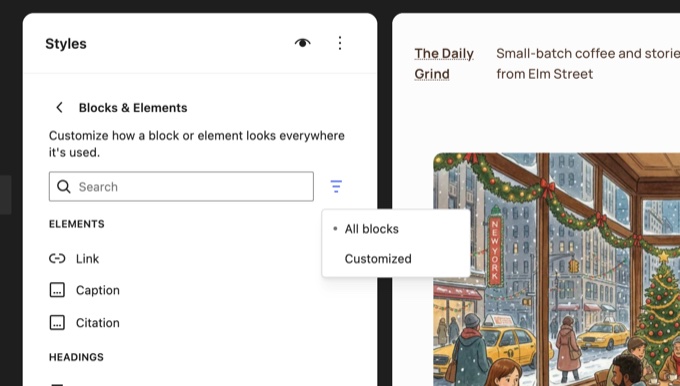
Instead of clicking through dozens of blocks to find your customizations, you can see them all in one list. Both changes make it much easier to understand why a block looks the way it does.
More Design Tools for Text and Images
WordPress 7.2 also adds a long list of design options to core blocks. The release includes more than 70 block support improvements, and these are the ones most users will notice:
Text shadows. You can now add text shadows from the block settings. Theme developers can also define text shadow presets in theme.json, which keeps typography consistent across your site.
Text gradients. Headings and other text blocks can now use a gradient as the text color.
Duotone for whole galleries. You can apply a duotone filter to a Gallery block once, and every image inside it gets the same tint. New images you add later get the filter too.
Site-wide duotone palettes. Global Styles now has a Duotone tab next to Color and Gradient when you edit your palette under Styles » Colors. You can create your own duotone presets and use them on Image, Gallery, and Cover blocks.
Gallery sorting. The Gallery block settings now include an ‘Order by’ dropdown that lets you sort images without dragging each one around.
Broader design controls. Many more core blocks now offer width, height, shadow, border, spacing, and background image settings.
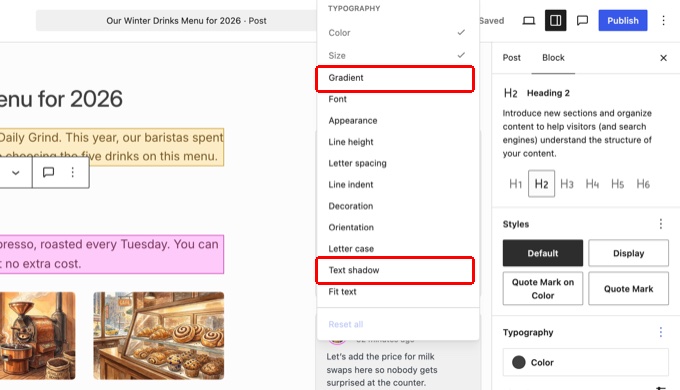
In our testing, the new Gradient and Text shadow options appeared in the Typography options menu of the Heading block. You need to switch them on from that menu before they show up in the panel.
We also applied a duotone filter to a whole gallery from the block toolbar. Every image in the gallery picked up the same sepia tint in one step.


The Icon block, introduced in WordPress 7.0, also gets keyword search. Typing “mail” or “letter” now finds the envelope icon, and you no longer have to guess the exact icon name.
WordPress 7.2 makes it easier to manage menus in the Site Editor.
You can now add, organize, and edit navigation links directly from the Site Editor sidebar. This means you can update your menu without opening the full Navigation block in the canvas.

Link search inside the Navigation block is also smarter. WordPress now groups and ranks the results, and the search can also find special blocks like the Home Link block.
As a result, you can build a complete menu in fewer clicks. If you have ever struggled to add a navigation menu in WordPress with a block theme, you’ll welcome this change.
Faster and Smarter Media Uploads
In WordPress 7.1, the block editor started processing images in your web browser before uploading them to the server. WordPress 7.2 expands this to the Media Library and the media modal.
In simple terms, when you upload images from Media » Add New, your browser can now resize, compress, and convert them before they reach your server. This can make uploads faster and reduce the load on your hosting.
It is especially helpful on budget WordPress hosting plans with limited image processing.
This feature currently works in Chromium-based browsers like Chrome and Edge. In other browsers, WordPress falls back to normal server-side processing, and your uploads still work.
WordPress 7.2 also fixes a bug that is 12 years old. When you uploaded an animated GIF or animated WebP, WordPress turned the smaller image sizes it created, like thumbnails, into static images.
Now, every image size keeps its animation.
Other media improvements include:
A redesigned media inserter. WordPress rebuilt the media inserter in the editor to stay fast, even on sites with large media libraries.
Cleaner crops. The image editor from WordPress 7.1 now tracks which cropped images came from which original. This keeps orphaned copies from cluttering your Media Library, and you can re-adjust a crop based on the original image.

In our testing, the new Media tab in the block inserter showed a cleaner image grid with search and a filter button. Galleries also got a ‘Use attached images’ button, which pulls in the images already attached to the post.
‘Published On This Day’ Comes to the Dashboard
If you read our WordPress 7.1 beta coverage, then you may remember the ‘On This Day’ dashboard widget. The core team cut it from the final 7.1 release.
Now it is back in the WordPress 7.2 beta in a slightly different form.
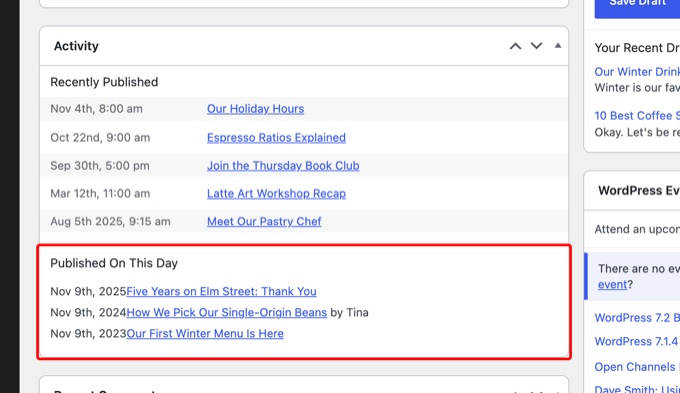
Instead of a separate widget, it is now a ‘Published On This Day’ section inside the Activity widget. It lists the posts you published on the same date in previous years.
To make room, Recent Comments moved into its own dashboard widget.
In our testing, we published posts on November 9 in 2023, 2024, and 2025. On November 9, all three appeared in the new section, along with the author’s name for posts written by other team members.
We like this one for long-running blogs. It’s a fun reminder of your site’s history, and it’s a practical way to find old content worth updating or resharing.
A Faster, More Consistent Admin
WordPress 7.2 includes several improvements to the admin area that you will feel more than you will see.
Faster admin pages. WordPress used to combine admin scripts and stylesheets into large files. In 7.2, it loads them individually, and your browser can cache them better.
A new prefetching feature also predicts which admin screen you are likely to open next and loads it in advance. This should make moving between the dashboard, your post lists, and the editor faster.
We checked the Posts screen on our test site. It loaded 62 separate script files with no combined bundle, plus a set of prefetch links for other admin screens.
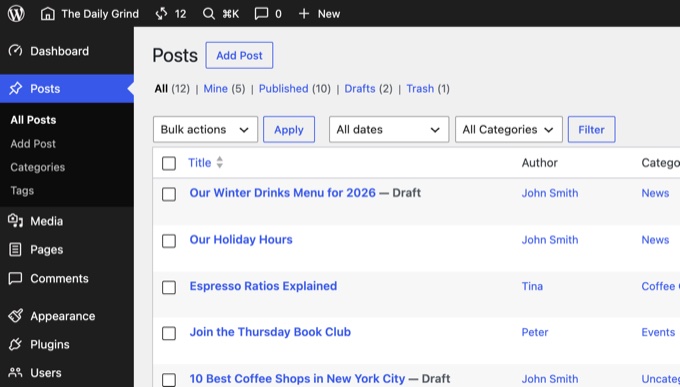
Modern icons. WordPress is replacing the old Dashicons in the admin bar and sidebar menu with SVG icons from the WordPress icon library. The dashboard now looks more consistent with the newer editing screens.
Clearer error messages. The block editor now shows more helpful error messages when something goes wrong. Some errors also include a button to copy the error text, which makes it easier to search for a fix or share it with your support team.
Pick which translations to update. If your site uses another language, the Updates screen now lists each available translation update. You can review and install them one by one, the same way you handle plugin and theme updates.
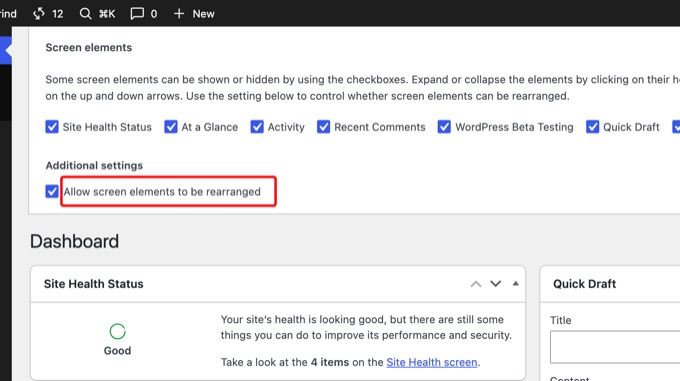
Lock your meta boxes in place. Screen Options now has an ‘Allow screen elements to be rearranged’ checkbox on classic screens like the dashboard. When you uncheck it, the boxes stay where they are, which prevents accidental dragging on phones and tablets.
A refreshed block settings panel. The core team is rebuilding the block settings sidebar on a new framework called DataForm. You may not notice much yet, but it gives WordPress a more consistent base for future block settings.
New /random/ Links for Your Posts
WordPress 7.2 adds random post links, and this one is just for fun.
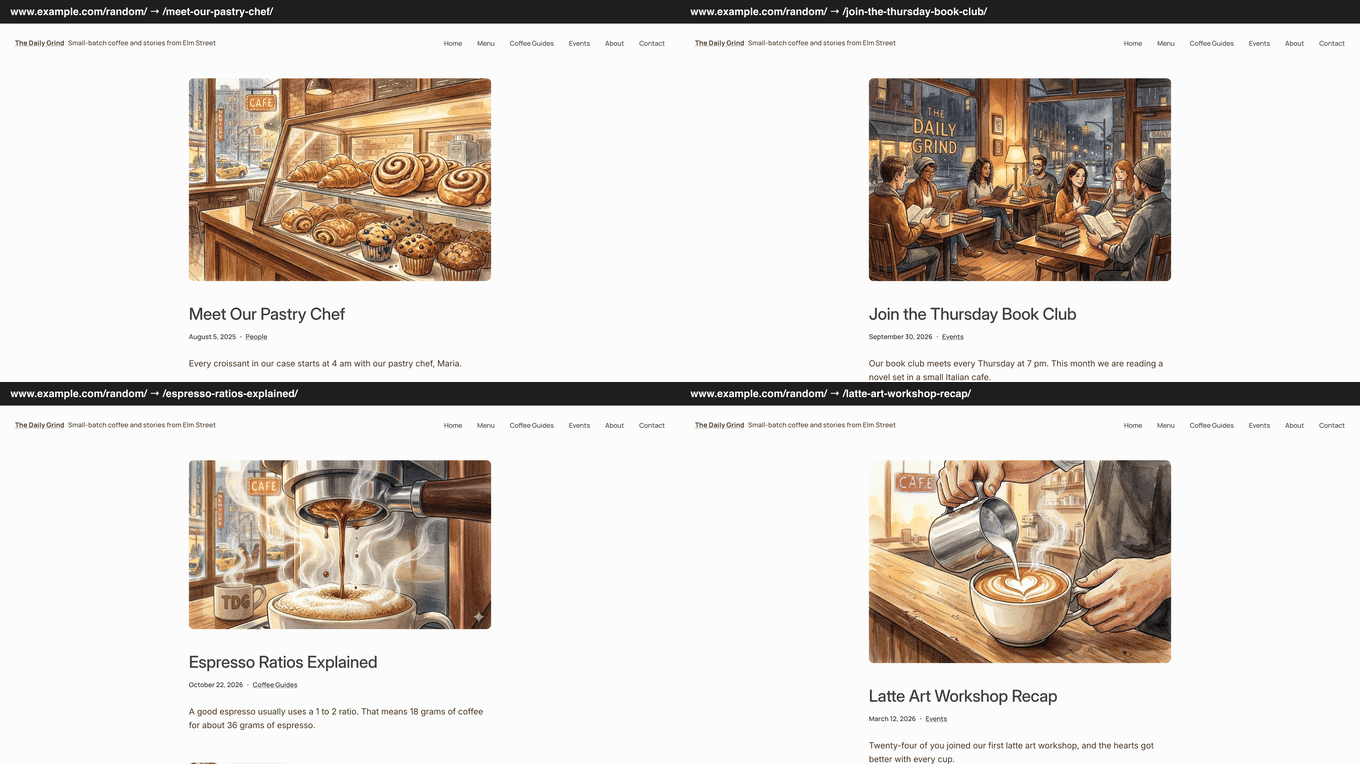
When someone visits yoursite.com/random/, WordPress sends them to a randomly selected published post. It also works for archives.
For example, /random/category/news/ picks a random post from the News category, and /random/author/john/ picks one from that author.
This gives you an easy way to add a “Surprise me” link to your menu and help readers discover older posts. Previously, you needed a plugin like Random Redirect to do this.
In our testing, every visit to /random/ sent us to a different post. The category and author versions only picked posts from that archive, and a category that doesn’t exist returned a 404 error page.
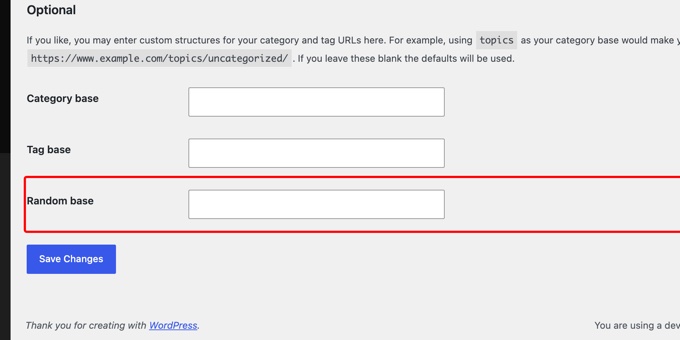
You can rename the /random/ part with the new ‘Random base’ field on the Settings » Permalinks page.
We also checked the response headers. The random links use temporary 302 redirects and a noindex header, which means they should not cause SEO problems.
However, you should know one thing before you update. WordPress turns this feature on by default for all public post types that have an archive.
Some developers worry that it could send visitors to content that is public but not meant for discovery, like client pages stored as a custom post type.
WordPress has no admin setting to turn it off. If you manage client sites, then it’s worth checking this before 7.2 goes live.
To disable random post links, you can add the following code snippet to your website. We recommend using WPCode to add it safely without editing your theme’s functions.php file. For step-by-step instructions, see our guide on how to add custom code in WordPress.
In our testing, both /random/ and /random/category/news/ showed a 404 error page as soon as we saved the permalinks.
Developers can also keep the feature on and exclude only one custom post type. To do that, register the post type with the ‘randomable’ => false argument.
What Will Not Be in WordPress 7.2
A few features from the WordPress 7.2 roadmap did not make it into the beta, and we want to be upfront about them.
Suggestion mode for Notes has moved to WordPress 7.3. This feature would let you suggest edits that the author can accept or reject, like in Google Docs. The core team had planned it as the centerpiece of this release.
However, the team decided it needs more testing first. Suggestion mode will continue as an experiment in the Gutenberg plugin.
The Table of Contents block has also moved to 7.3. This is the second release in a row the block has missed.
Real-time collaboration is still not ready. The core team left Google Docs-style co-editing off the 7.2 roadmap entirely, because some architectural decisions still need more time. You can follow our guide to collaborative editing in WordPress if you need it today.
AI features stay in the AI plugin. After the 7.1 cycle, the team decided AI features must prove their value before joining core. Work on things like AI site guidelines continues in the official AI plugin, with no promise of landing in 7.2. The MCP Adapter, which lets AI agents connect to your site, also stays a separate plugin for now, and the AI team is aiming to bring it into core in WordPress 7.3.
The roadmap also listed a “sudo mode” that asks for your password again before sensitive actions, along with a new Description List block. Neither feature has appeared in the beta releases so far, and we’ll confirm in our final release coverage whether they made the cut.
We think holding features back is the right call. A half-finished suggestion mode that confuses authors would be worse than waiting one more release.
Under the Hood (Developer & Performance Updates)
WordPress 7.2 also includes several technical improvements for developers:
Secrets API. WordPress finally gets a standard, secure way to store sensitive credentials like API keys and tokens. Until now, most plugins saved these as plain text in the database. The new API supports encryption at rest, credential rotation, custom storage providers, and WP-CLI, and it keeps secrets out of REST API responses, logs, Site Health info, and exports. The core team plans an admin settings screen for WordPress 7.3. (Trac #66187)
Abilities API expansion. The Abilities API gains new ways to access and query WordPress content, along with capability requirements and better schema handling. This gives integrations, automation tools, and AI agents a more consistent foundation. (Trac #66268)
Interactivity API updates. A new data-wp-html directive renders trusted HTML from the store inside interactive regions, and router updates let developers observe client-side navigation. (Gutenberg #83078)
Server-side DataViews and DataForm registration. Plugins can register views, fields, and forms on the server, which opens new ways to extend WordPress admin screens. (Trac #66325)
HTML API hardening. WordPress continues to make markup processing safer and more reliable across core. (Trac #65824)
No more script concatenation in the admin. Admin assets now load individually, with prefetching for the next likely screen. Plugin developers who relied on concatenated admin scripts should test their plugins. (Trac #57548)
Conclusion
We are looking forward to WordPress 7.2. The release has no single headline feature, but it takes the tools introduced in 7.1 and makes them more complete.
Our favorite changes are Notes in the margin and form styling in Global Styles. Reviewing drafts with your team now feels much more natural, and forms no longer need custom CSS to match your theme.
We are also curious to see how site owners use Ipsum as a starting point. The core team plans to release WordPress 7.2 on December 8, 2026, and we’ll publish a complete review of everything that made the final cut once it is out.
If you liked this article, then please subscribe to our YouTube Channel for WordPress video tutorials. You can also find us on Twitter and Facebook.